
Webex Meetings
Cisco Systems, Inc.Business
4.572.56K Reviews
- Version
- Varies With Device
- Installs
- 100.00M
- Age Rating
- Everyone
Screenshots
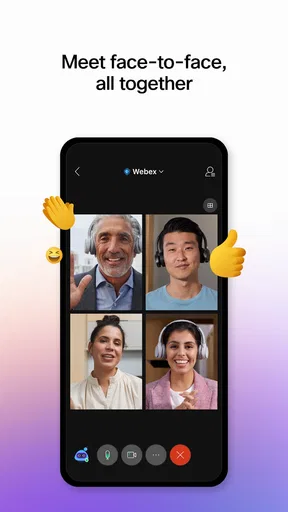


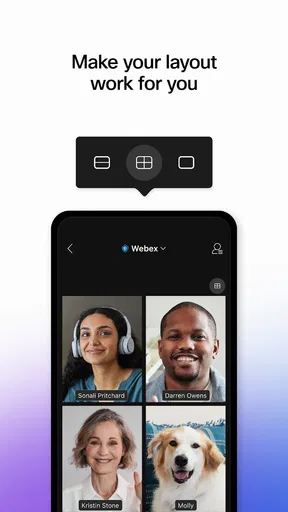
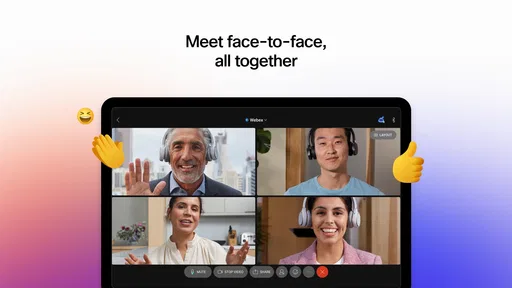


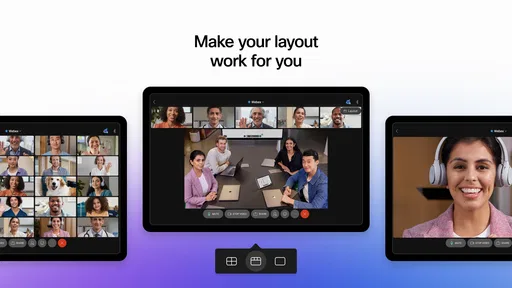
Our Review of Webex Meetings
 Analysis by Appyee
I use a meeting app most when the day refuses to stay in one place: a call starts on my phone, someone needs to show a document, and the useful outcome is a clear decision rather than another stack of messages. That is the situation where Webex Meetings makes sense. Cisco Systems, Inc. has built it for joining and running online meetings, and its business focus shows in the way it puts conversation and shared work at the center. It is free, rated for Everyone, and has a 4.5 average from around 2.2 million ratings, so it is a familiar option rather than a niche tool.
Starting with a meeting that has a purpose
The app is most useful when there is a reason to meet and something to leave with: a decision, a reviewed design, or a plan for who does what next. For a quick catch-up, I would not open a video call just because I can; a message is usually faster. But when people need to see the same material or resolve a question together, a meeting gives the discussion a shared focus.
Webex Meetings is a business app from Cisco Systems, Inc., released on Feb 9, 2011. It is free to install, and its Everyone age rating makes it broadly accessible. It has passed 100 million installs, which helps explain why many people may already recognize the name when a colleague sends an invitation. Those figures are useful context, but they do not tell me whether it suits a particular team; the way it fits your actual workflow matters more.
Your Virtual Meeting Room
First off, Webex Meetings is your go-to app for seamless virtual meetings. Whether you’re hosting a quick team huddle or a full-blown webinar, this app’s got you covered. It’s available on both Android and iOS, making it super accessible no matter what device you’re using. I’ve tested it on my tablet and phone, and it runs smooth as butter on both.
Getting from invitation to a useful outcome
My practical approach is to open the invitation before the call, check what the meeting is meant to settle, and have the relevant file or screen ready. That small bit of preparation matters on a phone, where switching between a call and a document can feel clumsy. If I am hosting, I try to name the decision or question early; if I am joining, I keep one concise note of what I need to contribute.
During the call, screen sharing is especially helpful when words are not enough. A teammate can point to a particular part of a presentation or walk through a draft rather than describing it line by line. I would still avoid treating a shared screen as a substitute for a prepared agenda: without a clear prompt, people can spend the call watching someone search for the right window.
Features That Make Life Easier
One of my favorite features has to be the screen sharing. It’s like having your own virtual whiteboard where everyone can see exactly what you're working on in real-time. I mean, who doesn’t love a good visual aid? Plus, the app allows you to share files directly in the chat. Gone are the days of scrambling to find that one elusive document during a meeting!
Let’s not forget about the background noise reduction. I’ve been in my fair share of meetings where the neighbor’s lawnmower decided to join the call. Webex Meetings’ noise reduction feature is like a magical mute button for all those unwanted sounds.
Keeping a call moving on a small screen
On a phone, I get the best results by deciding in advance whether I am mainly listening, speaking, or presenting. If I need to explain a visual, I make sure it is legible before sharing; tiny labels that are clear on a laptop can become a blur on a mobile display. When the goal is simply to listen in while moving between places, I keep my contribution short and avoid trying to handle several tasks at once.
Noise reduction helps in imperfect surroundings, but I would not rely on it to make every noisy location suitable. A quiet corner and a headset still make a noticeable difference to how comfortable a call feels for everyone. If a connection becomes unstable or the room is loud, turning off video or muting when I am not speaking can reduce distractions, though the right choice depends on the discussion.
User-Friendly Interface
Now, I know what you’re thinking. "Another app to learn?" But trust me, Webex Meetings is incredibly user-friendly. The interface is intuitive, with everything you need just a tap away. Whether you’re scheduling a meeting or jumping into one, it’s all straightforward. Even if tech isn’t your forte, you’ll be navigating this app like a pro in no time.
Handoffs between people and devices
The strongest everyday use case is a handoff: a colleague starts a discussion at a desk, then another person joins from a phone while away from the office. Because the meeting is not tied to one physical room, the conversation can continue without asking everyone to relocate. I find this more valuable for distributed teams than for people who are already sitting together and only need to exchange a quick update.
For example, imagine a team reviewing a draft shortly before a deadline. One person shares the relevant screen, a remote colleague flags a confusing section in chat, and the group agrees on a specific revision. The useful part is not simply that everyone can see the same thing; it is that chat can carry a link or note without interrupting the person speaking. Afterward, I would still write down the owner and next step somewhere the team can find them. A lively call is not automatically a reliable record of its decisions.
Security You Can Count On
In today’s digital age, security is everything. With Webex Meetings, you get top-notch encryption, ensuring that your private discussions stay private. I like how they don’t skimp on security features, giving peace of mind to users like you and me. It’s one less thing to worry about when you’re running a business or handling sensitive information.
Choosing the right tool for the group
Compared with ordinary messaging apps, Webex Meetings is the better fit when people need a live conversation and shared visual context. Compared with a traditional conference call, screen sharing gives the group something concrete to inspect. The trade-off is that a video meeting asks people to coordinate a time and pay attention together. If a question can be settled with one message or a shared document comment, I would use that instead of making everyone join a call.
It also makes most sense when the people you work with are willing to use the same meeting setup. If clients or collaborators already rely on another service, asking them to switch may add friction before the discussion even begins. I would choose the tool the group can join reliably, rather than insisting on one app for every conversation. Webex is a practical choice for recurring business calls, but not automatically the best choice for every informal chat or one-off exchange.
Integrations and Compatibility
If you’re like me, you probably use a bunch of different apps to manage your work life. The good news? Webex Meetings plays well with others. It integrates seamlessly with popular apps like Microsoft Outlook, Google Calendar, and more. No more juggling between apps to keep your schedule in check. It’s like having your own personal assistant!
When the workflow gets awkward
The main friction I notice is not a single complicated control; it is the context switching that comes with doing real work on a small device. Reading chat, watching a shared screen, and keeping track of the speaker compete for attention. If the meeting is important enough to require detailed review, I prefer a larger display or a quiet place where I can focus. A phone remains convenient for joining, but convenience does not make it ideal for every task.
Another limit is meeting discipline. Noise reduction cannot fix people talking over one another, and a chat thread can become a distraction if nobody decides which points need a live answer. I get more from the app when the host makes space for questions and closes with clear next steps. If the group tends to leave calls without decisions, changing the meeting habit will help more than changing apps.
Real-Time Collaboration
One thing that stands out with Webex Meetings is the real-time collaboration. You can edit documents together during the meeting, making it a breeze to brainstorm and finalize projects on the fly. It’s like having your team right there in the room with you, even if they’re miles away.
Plus, the app’s chat function keeps the conversation going without disrupting the flow of the meeting. You can have side discussions or share links and notes without missing a beat. It’s all about making collaboration as smooth and effective as possible.
Who will get the most from it
I would recommend it to people who regularly coordinate with coworkers, clients, or project partners and need to talk through material together. It is especially handy when someone is away from a desk but still needs to join a discussion, or when a team wants to replace a long chain of explanatory messages with one focused review. The app is less compelling if you rarely attend meetings, dislike video calls, or mostly need asynchronous updates that can wait for a reply.
Before joining from a phone, I would check whether the meeting is mainly for listening or whether I need to present or inspect detailed material. That simple distinction answers a common practical question: yes, mobile access is useful, but a phone is not always the most comfortable device for close reading or complex multitasking. For a quick contribution, it is convenient; for careful document work, I would choose a larger screen when possible.
Final Thoughts
At the end of the day, Webex Meetings is more than just a meeting app. It’s a tool designed to make your work life easier, more organized, and more productive. From its user-friendly interface to its robust security features, it’s clear that Webex has thought of everything.
If you’re searching for a reliable app that brings people together, whether for business or just catching up with friends, Webex Meetings is definitely worth a try. So, go ahead and give it a whirl. You might just find it’s exactly what you’ve been looking for!
My recommendation is to judge it by one real task rather than by a long list of features: bring the right people together, show them the material that matters, and finish with an agreed next step. If that flow matches your work, Webex Meetings is worth keeping on your phone. If your conversations are usually brief, private, or better handled in writing, a simpler messaging tool may be the less distracting choice.
Verdict
Strengths of Webex Meetings
- Easy-to-use interface with intuitive controls.
- High-quality video and audio performance.
- Supports large meetings with up to 1000 participants.
- Strong security features for data protection.
- Cross-platform compatibility for seamless use.
Limitations of Webex Meetings
- Requires a stable internet connection for optimal use.
- Limited features in the free version.
- Some users report occasional lag during meetings.
- Mobile app lacks some desktop features.
- Complex setup for first-time users.
Other Releases by Cisco Systems, Inc.
View All


Similar Picks in This Category
View All
LinkedIn: Community & Network
LinkedIn3.8

Zoom Workplace
zoom.com4.1

Microsoft Teams
Microsoft Corporation4.6

Meta Business Suite
Meta Platforms, Inc.4.6

TeamViewer Remote Control
TeamViewer4.4

File Commander Manager & Vault
MobiSystems4.2
You May Also Like
View All
Frequently Asked Questions
What features does Webex Meetings offer for collaboration?
Webex Meetings offers a wide array of collaboration tools designed to enhance virtual meetings. Users can enjoy HD video conferencing, screen sharing, meeting recording, and real-time messaging. The app also includes virtual backgrounds, breakout rooms, and integration with productivity tools like Microsoft Outlook and Google Calendar, making it a comprehensive solution for remote teams.
Is Webex Meetings secure for business use?
Yes, Webex Meetings prioritizes security with end-to-end encryption and advanced security options. It includes features like password protection, meeting locks, and the ability to expel participants. Cisco, the parent company, regularly updates its security protocols to ensure the app meets stringent privacy standards, making it a trusted choice for businesses.
How does Webex Meetings perform on mobile devices?
Webex Meetings is optimized for both Android and iOS devices, providing a seamless mobile experience. The app allows users to join or host meetings with ease, offering features like screen sharing and chat functionality. It also supports multitasking, so you can check emails or browse while in a meeting, ensuring flexibility and productivity on the go.
What are the pricing options for Webex Meetings?
Webex Meetings offers a range of pricing plans to suit different needs. There is a free plan that provides basic meeting features for up to 100 participants. Paid plans include additional features like cloud recording, extended meeting duration, and advanced administrative controls. Businesses can choose from starter, plus, and business plans, each offering varying levels of service.
Can I integrate Webex Meetings with other software and tools?
Absolutely, Webex Meetings is highly integrative, supporting connections with numerous third-party applications. It works seamlessly with Microsoft Office 365, Google Calendar, Slack, and Salesforce, among others. This interoperability ensures users can streamline their workflows and maintain productivity by connecting their preferred tools directly with Webex Meetings.
